

Download iTunes Remote Control – Free, Secure iTunes Management Tool
Overview
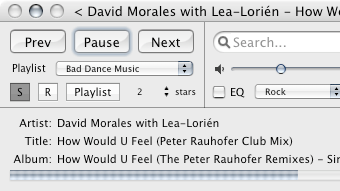
iTunes Remote Control (iTRC) is a lightweight network utility that lets you manage iTunes on a remote Mac from any other computer on the same network. Whether you’re in another room, a different floor, or simply want to hand over playback to a friend, iTRC provides full‑featured control without the need for additional hardware. The app supports basic playback functions, playlist navigation, remote searching, volume adjustments, mute toggling, and real‑time song metadata display.
A Growler integration pushes instant notifications for track changes, ensuring you never miss a beat. Earlier releases suffered from sluggish playlist loading, but the latest version has dramatically improved response times and added a progress indicator that syncs with playlist building. In short, iTRC offers a secure, free, and easy‑to‑use way to keep iTunes under your command wherever you are in the house or office.
Key Features & Compatibility
- Full playback control: play, pause, stop, skip forward/backward.
- Playlist management with fast loading and real‑time updates.
- Remote search across your entire iTunes library.
- Volume and mute control from any network‑connected Mac.
- Live display of song title, album, and artist.
- Growler notifications for instant track‑change alerts.
- Secure network communication using Apple Events.
- Lightweight design – minimal CPU and memory footprint.
Supported Operating Systems
iTunes Remote Control is built exclusively for macOS. It runs on macOS 10.12 Sierra and later, including the latest Ventura releases. While the client side can be any Mac on the same network, the host machine must have iTunes (or the Music app on newer macOS versions) installed and Apple Events enabled. No Windows, Android, or iOS versions are available at this time, but the network‑based approach means you could technically control iTunes from any device that can run a compatible client script.
Installation, Usage & Real‑World Pros / Cons
Step‑by‑Step Installation
- Download the latest iTRC package from the official website (link provided below).
- Open the .dmg file and drag iTunes Remote Control to your Applications folder.
- Launch iTRC on the Mac that hosts iTunes. You’ll be prompted to enable “Remote Apple Events” in System Preferences → Sharing.
- Take note of the computer’s network name (e.g., “MacBook‑Pro.local”). This identifier is required for remote connections.
- On the controlling Mac, open iTRC, enter the host’s network name, and click “Connect”.
- If prompted, accept the security dialog to allow remote Apple Events.
- Once connected, the main interface displays playback controls, playlist navigation, and a search bar.
Practical Usage Tips
After connecting, you can create custom shortcuts for your favorite playlists by right‑clicking a playlist name and selecting “Add to Favorites”. The Growler notifications can be toggled in the Settings pane – useful if you prefer a silent environment. For large libraries, enable “Cache Playlists” to speed up subsequent loads. Remember that network latency may affect responsiveness, so a wired Ethernet connection yields the best experience.
Pros & Cons
- Pros:
- Free and open‑source, no hidden fees.
- Fast playlist loading in the latest release.
- Secure Apple Events communication.
- Minimal system impact – runs quietly in the background.
- Growler integration keeps you informed of track changes.
- Cons:
- Only macOS is supported; no native Windows or mobile client.
- Initial setup requires enabling remote Apple Events, which can be confusing for beginners.
- Relies on the same local network – cannot control iTunes over the internet without VPN.
Overall Rating: 4.5 / 5 – iTunes Remote Control delivers exactly what it promises: reliable, free, and secure remote control of iTunes on macOS.
Frequently Asked Questions
-
Do I need to be on the same Wi‑Fi network to use iTRC?
Yes, iTRC works over a local network. Both the host and the controlling Mac must be connected to the same Wi‑Fi or Ethernet network. For remote access over the internet you would need a VPN tunnel.
-
Can iTRC control the new Music app on macOS Catalina and later?
Yes. Starting with macOS Catalina, iTunes was replaced by the Music app, and iTRC communicates via Apple Events, which are still supported. The interface and features remain the same.
-
Is there a cost associated with iTRC?
No. iTunes Remote Control is completely free to download and use. There are no hidden in‑app purchases or subscription fees.
-
What should I do if playlists load slowly on my machine?
Make sure you are running the latest version of iTRC. Enabling “Cache Playlists” in Settings can dramatically improve load times for large libraries. A wired connection also reduces latency.
-
Can I share iTRC control with multiple users?
Yes. Any Mac that knows the host’s network name and has Apple Events enabled can connect simultaneously. Just be mindful that multiple users will affect playback order.
Conclusion & Call to Action
iTunes Remote Control stands out as a robust, free solution for anyone who wants to keep their music flowing without being tethered to the host computer. Its straightforward setup, fast playlist handling, and secure Apple Events communication make it an ideal tool for home studios, office environments, or shared living spaces. While it’s limited to macOS, the feature set more than compensates for the platform restriction, especially for users already invested in Apple’s ecosystem. Ready to regain control of your iTunes (or Music) library from anywhere in the house? Download iTunes Remote Control now and enjoy seamless, secure playback management for free.







